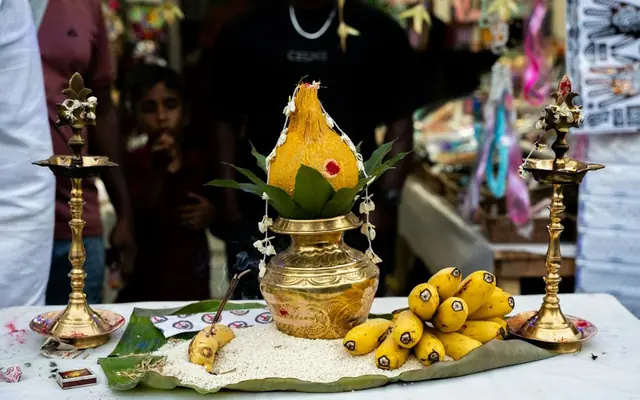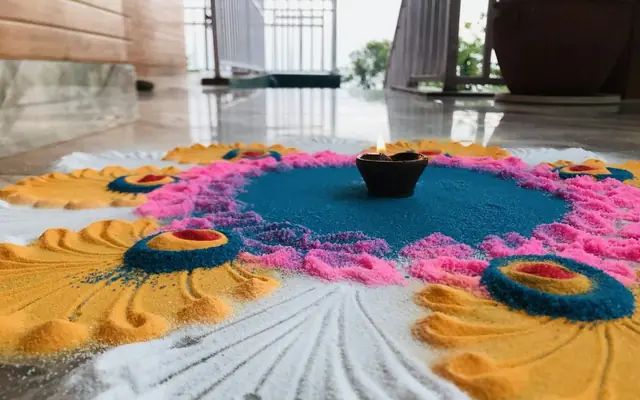
Griha Pravesh is one of the most significant ceremonies in an Indian family's life: the first entry into a new home, marked by pooja, ritual, and a gathering of family and friends who bless the space. The invitation must work hard: it needs to communicate the muhurat time precisely (guests who arrive late miss the most important part), give an address that works for first-time visitors, and convey the warmth of the occasion. Here is a step-by-step guide to creating a digital Griha Pravesh invitation that does all of this well.
Step 1: Start with the muhurat time; everything else follows
Before you open any invitation tool, confirm the muhurat time with your family priest or astrologer. The muhurat is the auspicious time window for the first entry. In many traditions, the family enters the home during a specific 10–30 minute window, and missing it is not acceptable. Once you have this time, build the invitation schedule around it. If the muhurat is at 10:15 AM, the invitation should tell guests to arrive by 10:00 AM. The pooja typically begins before the muhurat, usually 30–45 minutes before, with Ganesh Pooja and other preparatory rituals. Your schedule might read: 9:30 AM: Ganesh Pooja begins | 10:00 AM: Guests arrive | 10:15 AM: Griha Pravesh muhurat (entry through decorated door) | 11:00 AM: Pooja and havan | 1:00 PM: Lunch.
Step 2: Enter venue details with a precise Maps link
New construction addresses in India, especially in upcoming residential layouts and gated communities, are notoriously difficult to find from text alone. On ShareInvite, you can add a Google Maps link to the exact location of your new home. For apartment buildings, use the pin for the main gate, not the building, since Maps often drops the pin in an unhelpful place inside a large complex. Include the tower number and flat number in the address text, and add a note like "Enter through Gate 2 on [Road Name], take the lift to floor [X]." Include a nearby landmark: "Opposite [Landmark] or next to [Petrol Pump]." These small additions prevent the flood of "Where exactly is this?" WhatsApp messages on the morning of the ceremony.
Step 3: Add the pooja schedule, parking notes, and a home photo
After venue and muhurat, fill in the rest of the invitation. Upload a photo of your new home (the exterior, the decorated entrance, or even the keys) as a personal touch that makes the invitation feel celebratory rather than functional. Add parking instructions: "Street parking available on [Road Name]" or "Basement parking in Tower B, access from Gate 3." Add any dress code notes if relevant. Many families ask guests to wear traditional attire or a specific colour for the Griha Pravesh. Once all fields are complete, preview the invitation on your phone before sharing: check that the Maps link opens correctly, the photo loads, and the schedule is clear.
Step 4: Get the shareable link and write the WhatsApp message
Once your invitation is published, copy the shareable link from ShareInvite. Write a short WhatsApp message (4–5 lines) for each group you are sending to. Include the muhurat time in the message itself. This is critical enough to mention explicitly rather than leaving guests to find it in the invitation page. Example: "[Family Name] invites you to our Griha Pravesh on [Date]. Muhurat: [Time]. Pooja at [Time], lunch to follow. [Address], [City]. [Link]. Please find directions in the invitation." Send this message to your family groups, friend groups, and neighbours.
Regional variations: Gruhapravesham, Ghar Pravesh, and Vastu Puja
The ceremony has different names and slightly different customs across regions. Griha Pravesh is the Sanskrit/North Indian term. Gruhapravesham is the South Indian (Telugu/Kannada/Tamil) variant. The ceremony sequence is similar but may include additional rituals like entering with a pot of boiling milk (symbolising prosperity overflowing). Ghar Pravesh is the common Hindi term. Vastu Pooja is a related ceremony focused specifically on blessing the structure of the home according to Vastu Shastra. It may be performed at the same time as Griha Pravesh or separately. Use the term your family uses in the invitation, and if your family uses multiple terms across different linguistic backgrounds, both can appear: "Griha Pravesh / Gruhapravesham."
Quick checklist
- Confirm the exact muhurat time before creating the invitation.
- Include the full ceremony schedule starting from Ganesh Pooja.
- Add a Google Maps link pinned to the main gate or entrance, not just the building.
- Include entry instructions for gated communities or apartment complexes.
- Add parking notes.
- Upload a photo of the new home exterior or entrance.
- Mention if traditional attire or a specific colour is expected.
- Send 10–14 days before; resend link as reminder 2 days before.
Frequently asked questions
Yes, include the schedule, but keep it concise. Guests need to know the muhurat time to plan their arrival, and knowing when lunch is served helps guests who are coming from farther away. You do not need to list every individual ritual. A schedule like "9:30 AM: Ganesh Pooja | 10:15 AM: Griha Pravesh muhurat | 11:00 AM: Havan and blessings | 1:00 PM: Lunch" is enough. Avoid listing rituals guests are not involved in. It creates confusion about whether they need to bring anything.
This is exactly where a digital invitation outperforms a printed card. Log back into ShareInvite, update the muhurat time and schedule, and save. The same link all guests received will now show the updated information automatically. Send a short WhatsApp message to your groups: "Update: The muhurat time has changed to [New Time]. Please check the invitation link for the updated schedule: [link]." Guests who click the link will see the correct information immediately. No reprinting, no resending a new file.