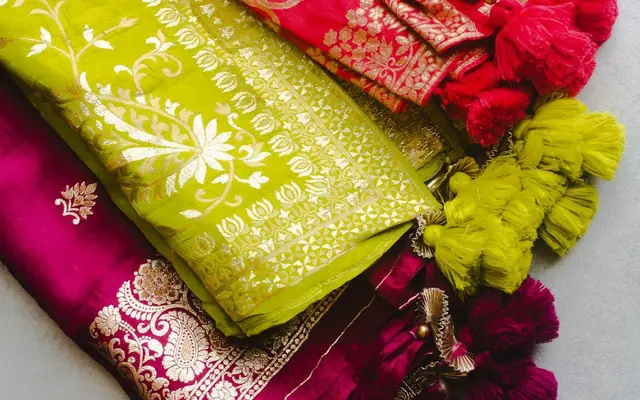
Colour on a printed wedding card and colour on a digital invitation behave differently, and most palette advice is still written for print. Gold foil catches light on card; the same gold as a flat screen colour looks like mustard. Deep maroon is rich on paper and can be nearly black on a phone at low brightness. An e-invite palette has to survive being viewed on a cheap screen, outdoors, at whatever brightness the guest happens to have. That constraint rules out several combinations that look beautiful in a design tool. Here are palettes that hold up, and the specific pairings that fail.
Palettes that work on screens
Four combinations that consistently read well on phones and still feel like Indian wedding invitations.
Ivory and deep gold. A warm off-white background with a strong gold for headings and a dark brown-grey for body text. The classic register, and the most forgiving because the background is light and body text can be genuinely dark.
Maroon and cream. Deep maroon as an accent and section background, cream for text sitting on it, dark text on cream elsewhere. Traditional and high-contrast, provided the maroon is dark enough that cream text on it is clearly legible.
Teal and antique gold. Less common and increasingly popular for South Indian weddings. Works because teal is dark enough to carry light text and distinct enough from the usual red-gold palette to feel considered.
Blush, sage and ivory. The contemporary choice. Soft, but only workable if body text is a genuine dark grey rather than a mid-tone. Soft palettes fail when the text is also soft.
In each case the pattern is the same: a light background for the bulk of the text, with saturated colour used for accents and section blocks rather than behind paragraphs.
Combinations that fail on phones
The recurring failures, all of which look fine on a laptop.
Gold text on cream. The most common mistake on Indian invitations. Gold is a mid-tone and cream is a light tone, so contrast is low, and in sunlight it vanishes. Gold works as an accent, a border or a large heading, but not as body text.
White text on pale pink or peach. Same problem, and worse outdoors.
Dark text on a dark photograph. Text over a background image is where invitations most often become unreadable, because the image varies behind the text. If you must, add a solid overlay behind the text rather than relying on the image being dark enough.
Maroon text on maroon-tinted backgrounds. Tonal palettes look sophisticated and read as mush at 14 pixels.
Pure black on pure white. Not unreadable, but harsh, and it reads as a document rather than an invitation. A very dark brown or grey on an off-white is warmer and just as legible.
Using colour to structure the page
On a digital invitation, colour does a job it does not do on a card: it separates sections on a long scrolling page.
Alternate background tones between sections: ivory for the names and date, a deeper tone for the schedule, back to ivory for the gallery. This gives guests a sense of progress as they scroll and makes individual sections findable when someone returns to check the venue.
Keep the number of background tones to two or three. More reads as busy and makes the page feel longer than it is.
Use one accent colour consistently for anything interactive: the Maps button, the RSVP button, links. If the accent is also used decoratively everywhere, guests stop noticing it and miss the buttons.
Reserve the strongest colour for the single most important action. On most invitations that is the directions button.
Checking a palette properly
Three tests, each of which catches a different failure.
Outdoors on a phone at medium brightness. This is the real viewing condition for a large share of guests and it eliminates low-contrast pairings immediately.
On a cheap Android screen. Colour reproduction on budget phones is noticeably different: saturated reds shift, subtle tonal differences disappear. If a palette depends on distinguishing two close tones, it will fail here.
In greyscale. Convert a screenshot to black and white. If headings, body text and buttons are still clearly distinguishable, the contrast is carried by lightness rather than hue, which is what makes a palette robust, and what makes it work for colour-blind guests.
If a palette passes all three, it will hold up on every device your guest list owns.
Quick checklist
- Keep a light background behind the bulk of the text
- Use saturated colour for accents and section blocks, not behind paragraphs
- Never set body text in gold on cream
- Add a solid overlay behind any text sitting over a photograph
- Limit background tones to two or three across the page
- Reserve one accent colour for buttons and links only
- Test outdoors, on a budget Android, and in greyscale
Frequently asked questions
Ivory with deep gold, maroon with cream, teal with antique gold, or blush and sage with ivory. In each case the structure is the same: a light background behind most of the text, with saturated colour used for accents and section blocks rather than behind paragraphs. Palettes that put mid-tone text on light backgrounds fail outdoors.
On a printed card, gold is foil that catches the light. On a screen it is a flat mid-tone, so gold text on a cream background has low contrast and becomes hard to read in sunlight. Gold works well as an accent, a border or a large heading, just not as body text.
Put a solid or strongly tinted overlay behind the text rather than relying on the image being dark enough. Images vary behind the text as the page scrolls and across different crops on different screen widths, so text that is legible on one phone can disappear on another.
Three tests. View it outdoors on a phone at medium brightness, which is the real condition for many guests. View it on a budget Android, where colour reproduction differs and close tones merge. And convert a screenshot to greyscale: if headings, text and buttons are still distinguishable, the contrast is carried by lightness rather than hue, which also makes it work for colour-blind guests.